How to create a service desk ticket
How to create a service desk ticket
This guide will help you effectively use the Service Desk Portal to create tickets for various support needs, including bugs, change requests, and more. To get started, watch this short video demonstrating how to create some of the common ticket types:
Video
Now, let's dive into the details of identifying and creating different ticket types. To begin, access the Service Desk Portal at: https://energyworx.atlassian.net/servicedesk/customer/portals. You'll then be prompted to choose the type of ticket you want to create. The following sections outline the different ticket types, the situations they address, and detailed instructions for creating each one
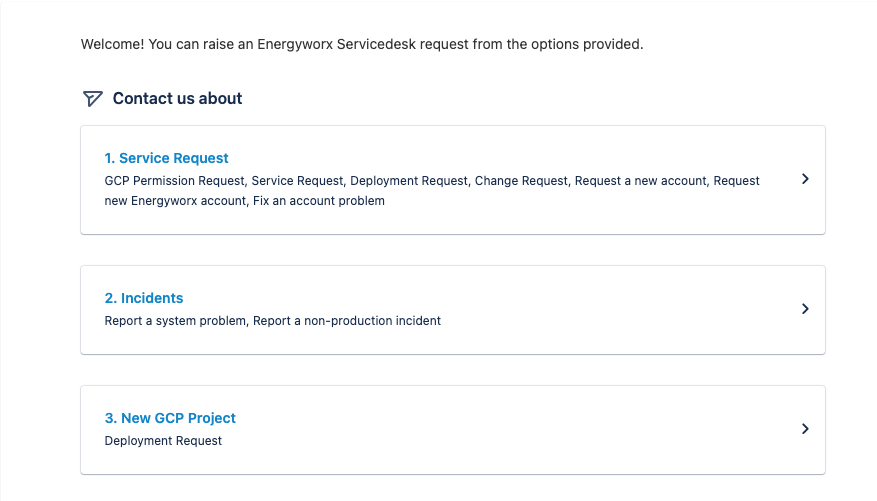
Identify the type of ticket: Service Request or Incident
Before creating a ticket, it is important to determine whether it is a service request or an incident.
- Service Request: Use this type of ticket for the following:
- Requesting a generic service request
- Requesting a change/feature
- Requesting a new account
- Reporting an issue with an account (e.g., locked account, password reset)
- Requesting a GCP permission
- Requesting a capacity change
- Incident: Use this type of ticket to report an issue affecting the normal operation of a service or system. Incidents can be further classified as:
- Production: Issues impacting the live production environment
- Non-Production: Issues impacting development, testing, or staging environments
- Deployment Request: Use this type of ticket to request a deployment for a specific project, including details such as the project ID, component for deployment, component version, preferred deployment date, and any pre/post-deployment steps.
In the following sections, we describe in detail how to create each type of ticket.
Requesting a generic service request:
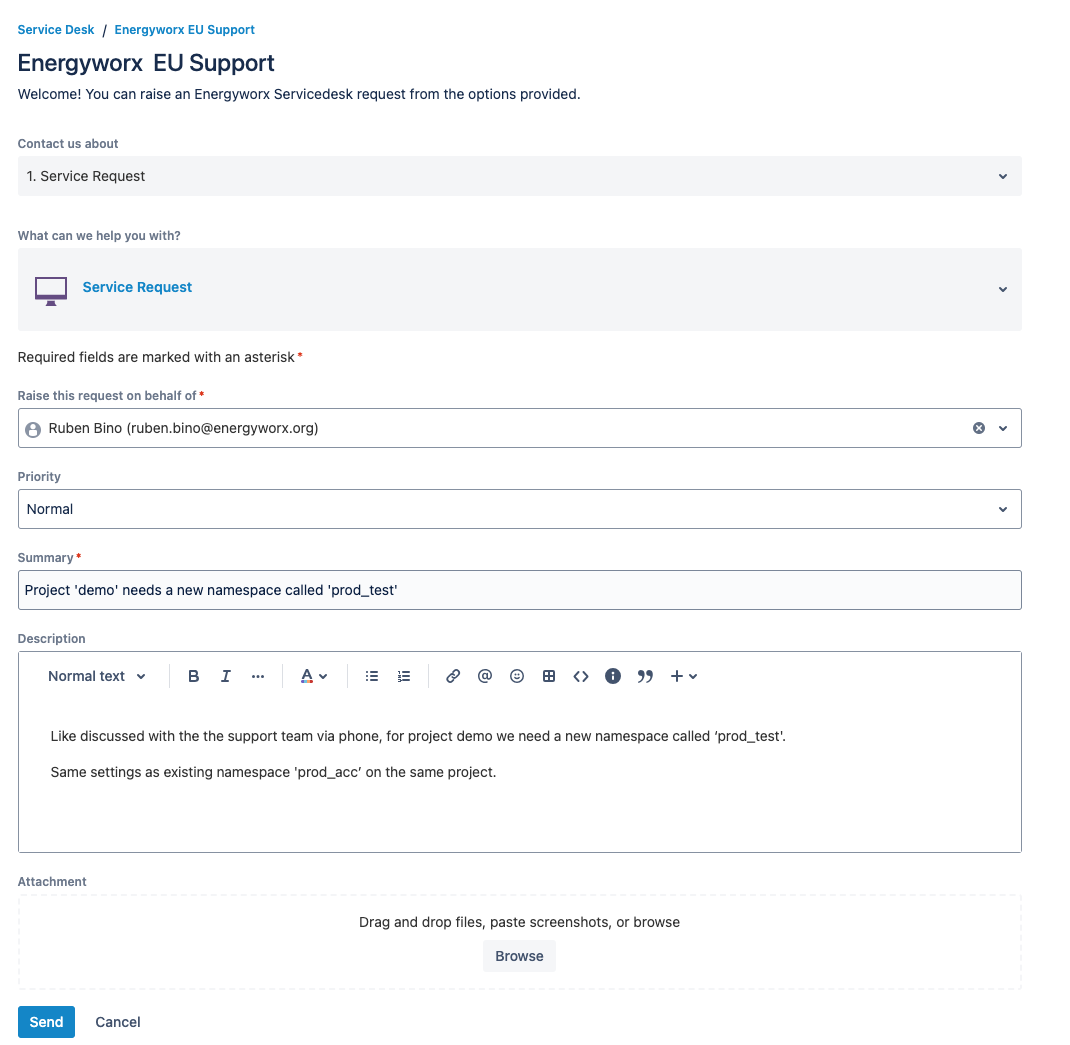
To create this type of request, the user must fill in the following mandatory fields:
- Priority: Indicate the urgency of the request (e.g., Low, Medium, High).
- Summary: Provide a brief, descriptive summary of the request (e.g., "Request a new Service Account for project X").
- Description: Include a detailed explanation of the requested service, the reasons for the request, and any relevant technical specifications. Additionally, users are encouraged to attach any supporting evidence that may be helpful for the support engineer to understand and fulfill the request. This may include screenshots, relevant documentation or links.
Note: This type of request should be used for requests for which there is no specific type. For example, to ask for information regarding the logic of a process, deleting datasources, and so on.
Example: A user wants to request the creation of a new namespace for a certain project:
Requesting a change/feature:
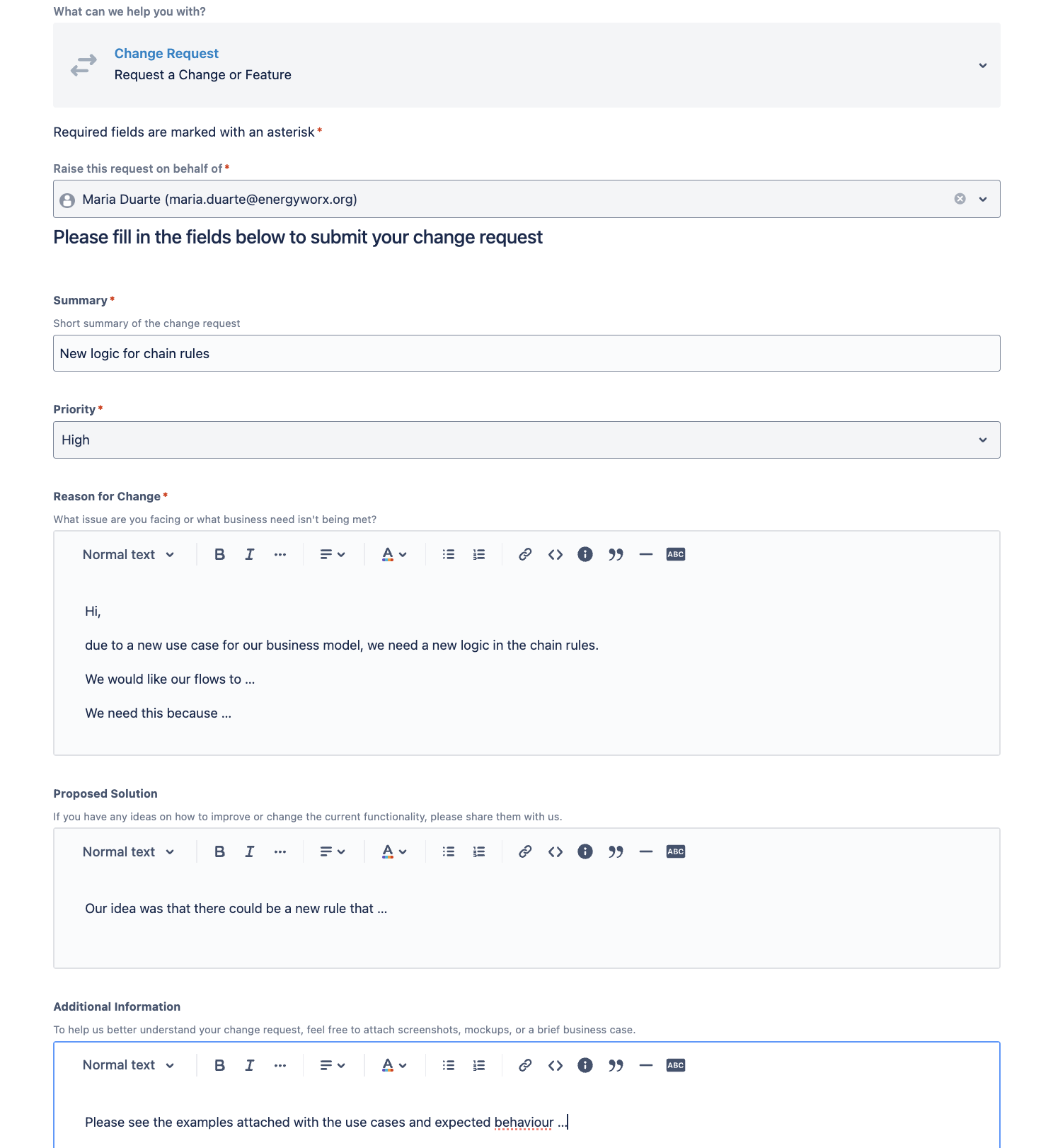
To create this type of request, the user must fill in the following mandatory fields:
- Priority: Indicate the urgency of the request (e.g., Low, Medium, High).
- Summary: Provide a brief, descriptive summary of the request (e.g., "New logic for the chain rules ").
- Reason for change: The justification as to why this change/feature is necessary
The user can also fill the fields:
- Proposed Solution: Add a possible solution for the requested change
- Additional Information: Add any relevant information for the change
Example: A user wants a new logic for the chain rules:
Requesting a new account:
In most cases, user accounts do not need to be requested through the service desk. A customer administrator can whitelist the user directly, after which the user's account is created automatically on first login. See How to add a new user for the complete process.
Use this service desk ticket type only if your organization does not yet have a designated administrator with whitelisting permissions, or if you need Energyworx to assist with account setup.
To create this type of request, the user must fill in the following mandatory fields:
- Priority: Indicate the urgency of the request (e.g., Low, Medium, High).
- Summary: Provide a brief, descriptive summary of the request (e.g., "New account request for John Doe").
- Description: Include the following details about the new account:
- Name of the user
- Email address
- Department or team
- Required system access or permissions
- Reason behind the request
- Any additional relevant information
Fix an account issue:
To create this type of request, the user must fill in the following mandatory fields:
- Priority: Indicate the urgency of the request (e.g., Low, Medium, High).
- Summary: Provide a brief, descriptive summary of the issue (e.g., "Unable to access account").
- Description: Describe the account issue in detail including: when the issue started, any error messages encountered, and, the impact it has on the user's ability to work.
- Steps to Reproduce: Provide a clear, step-by-step guide on how to reproduce the issue. This will help the support engineer to quickly diagnose and resolve the problem. (e.g., If the user can’t log in into the EWX platform, he could describe which provider, Google, or Microsoft, he is using to login into the platform).
Additionally, users can attach any supporting documentation that may be helpful for the support engineer to understand and fulfill the request. This may include:
- Screenshots of error messages (e.g., Console errors showing on the inspect page).
- Account details
- Any other relevant information
Deployment Request:
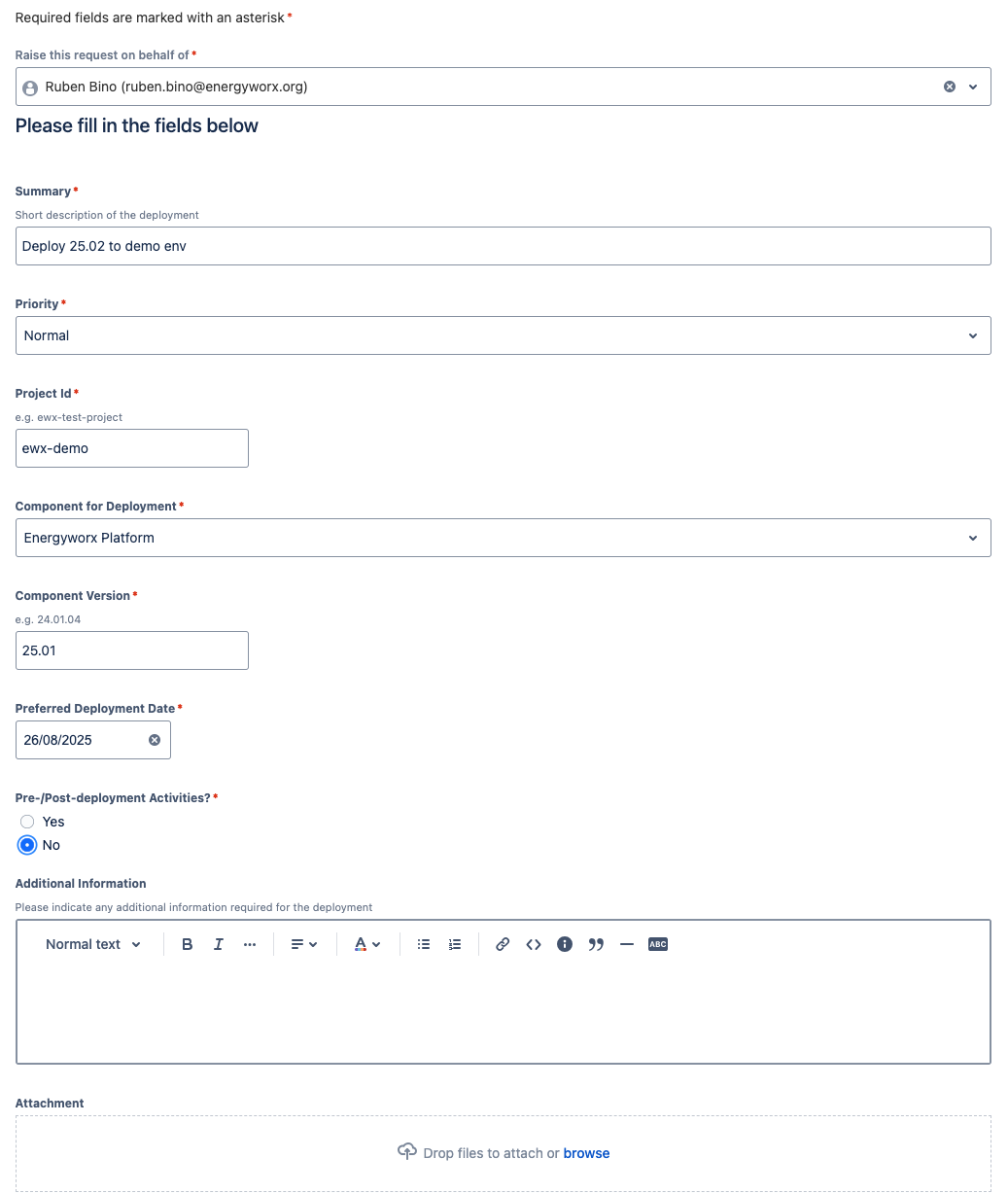
To create this type of request, the user must fill in the following mandatory fields:
- Summary: Provide a brief, descriptive summary of the request (e.g., "Deployment Request for Project X at 8 AM UTC time").
- Priority: Indicate the urgency of the request (e.g., Low, Medium, High).
- Project ID: Specify the unique identifier of the project where the deployment will take place.
- Component for Deployment: Indicate the specific component to be deployed.
- Component Version: Indicate the specific version to be deployed. If you are not sure of the component version, you can contact a support or solutions engineer to request the information.
- Preferred Deployment Date: Specify the desired date and time for the deployment.
- Pre/Post Deployment Steps: Indicate whether any specific steps need to be performed before or after the deployment (Yes/No). If yes, provide a detailed description of the required steps.
Additionally, users can attach any supporting documentation that may be helpful for the support engineer to understand and fulfill the request. This may include:
- Deployment plans or instructions
- Test results or reports
- Configuration files or scripts
- Any other relevant technical documentation
Example: A user wants to request a deployment request for a specific project:
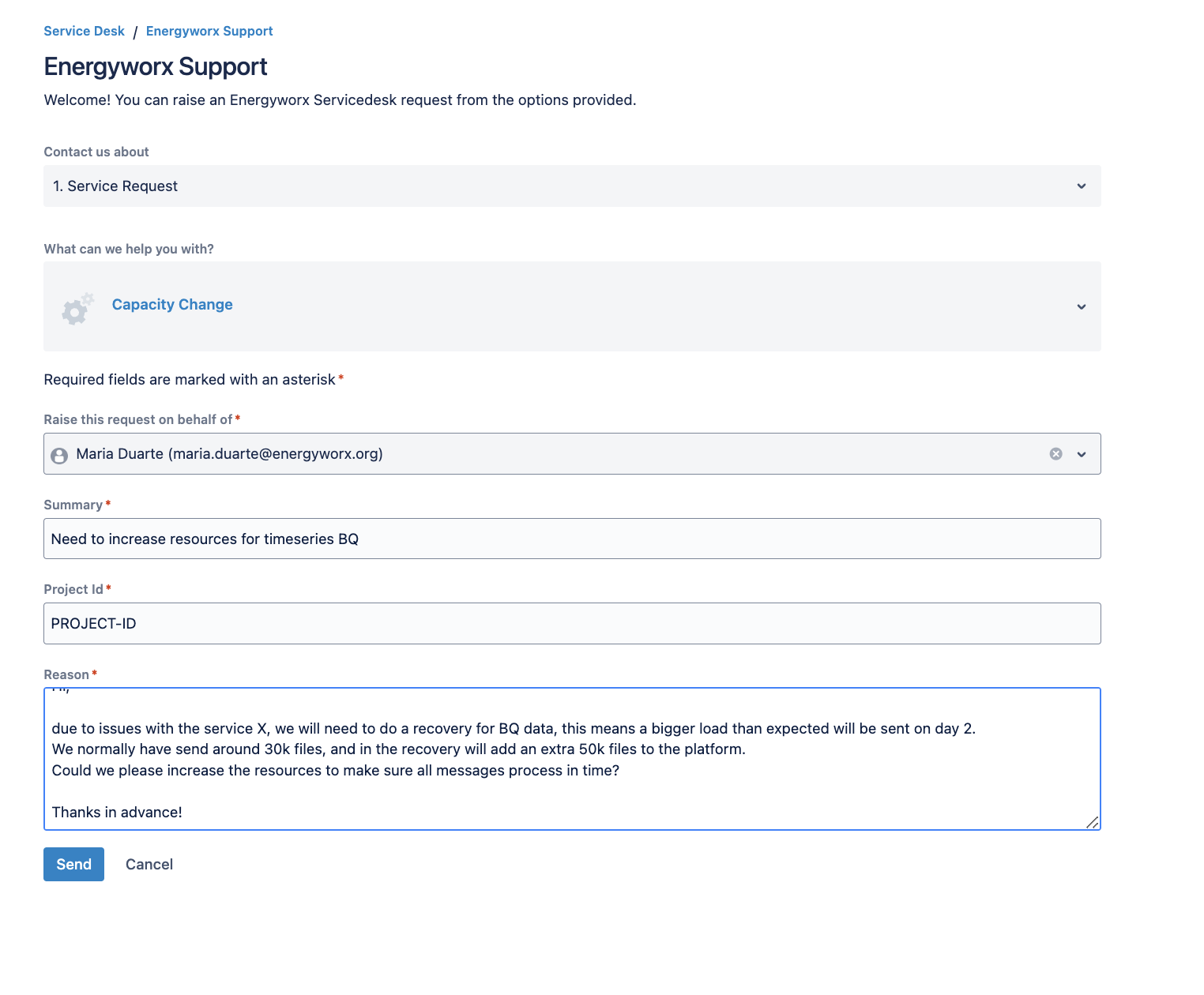
Capacity Change:
To create this type of request, the user must fill in the following mandatory fields:
- Summary: Provide a brief, descriptive summary of the request (e.g., "New to increase BQ timeseries resources ").
- Project ID: Specify the unique identifier of the project where the issue is occurring.
- Reason: The user should add when the resources need to be increased and also add a justification as to why this capacity change is needed.
Example: A user wants to the BQ timeseries resources to be increased:
Incidents Request:
To create this type of ticket, the user first must choose between a production or non-production incident. After, the user must fill in the following mandatory fields:
- Priority: Indicate the urgency of the issue (e.g., Low, Medium, High).
- Summary: Provide a brief, descriptive summary of the issue (e.g., "Message X is not processing").
- Description: Describe the issue in detail, including the impact on users, any error messages encountered, and any troubleshooting steps already taken. (e.g., Mention when the issue started occurring, the processes/datasources that are being affected, the expected result, and the actual result)
- Project ID: Specify the unique identifier of the project where the issue is occurring.
- Namespace: Specify the namespace where the issue is occurring.
- Steps to Reproduce: Provide a clear, step-by-step guide on how to reproduce the issue. This will help the support engineer to quickly diagnose and resolve the problem. (e.g.,the file/flow to ingest/start, the rule/data to check)
Additionally, users can provide the following optional information:
- Payload: Provide the payload related to the issue, if applicable.
- Attachments: Attach any supporting documentation that may be helpful for the support engineer to understand the issue (e.g., screenshots of logs or errors detected).
- External Incident ID: If the issue has been reported to an external system, provide the incident ID for reference.